

Mac Tutorials
macOS Cannot Verify That This App Is Free From Malware: Here’s How to Fix It
May
macOS Cannot Verify That This App Is Free From Malware: Here’s How to Fix It
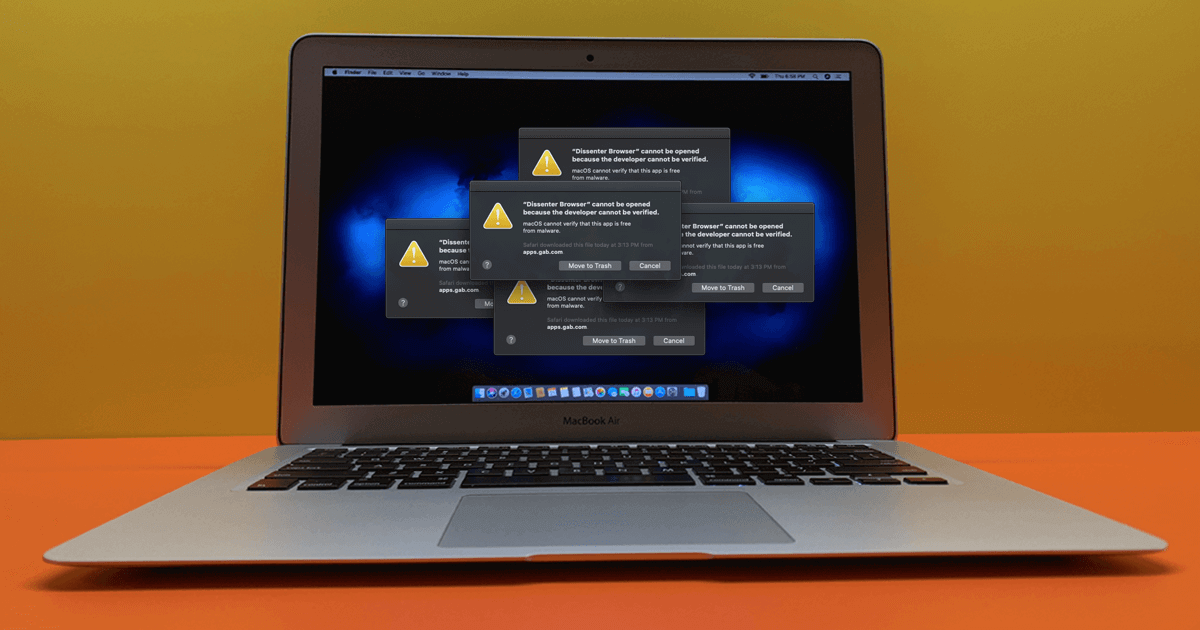
You downloaded an app from a developer’s website, double-clicked it, and your Mac stopped you with a message: “macOS cannot verify that this app is free from malware.” It’s one of the more confusing warnings macOS throws at you — because it doesn’t actually mean the app is dangerous. It just means Apple’s Gatekeeper security feature couldn’t confirm the app’s identity before letting it run.
This guide explains exactly what causes the error, how to tell whether the app is actually safe to open, and four different ways to fix it — from a simple right-click to a Terminal command. We’ll also cover when not to bypass the warning.
🔑 Key Takeaways
- ✅ The error is triggered by Apple’s Gatekeeper, not by actual malware on your Mac.
- ✅ It appears when an app lacks a valid Apple Developer ID signature or notarization.
- ✅ If you downloaded from the official developer site, the app is almost always safe to open.
- ✅ The safest fix is Control-click → Open, or the Privacy & Security “Open Anyway” button.
- ✅ Disabling Gatekeeper entirely is an option but weakens your Mac’s overall protection.
What Is the “macOS Cannot Verify That This App Is Free From Malware” Error?
When you download an app from outside the Mac App Store, macOS runs it through a security layer called Gatekeeper. Gatekeeper checks two things before letting the app open:
- Developer ID signature — confirms the app was built by a developer registered with Apple and hasn’t been modified since.
- Notarization — confirms Apple ran an automated malware scan on the app before it was distributed. Learn more about Apple’s notarization process.
If either check fails, Gatekeeper blocks the app and shows the warning. This does not mean your Mac is infected. It means the app didn’t pass Apple’s automated verification process. The most common reasons this happens:
| Reason | What It Means |
|---|---|
| App not notarized | The developer didn’t submit it for Apple’s automated scan. Common with small or open-source projects. |
| Missing or invalid signature | The app’s digital signature is absent, expired, or was corrupted during download. |
| Downloaded from a third-party site | macOS attaches a quarantine flag to files downloaded from the internet. This triggers the Gatekeeper check. |
| App requires elevated permissions | Some legitimate apps (audio drivers, VST plugins, kernel extensions) request permissions Apple considers sensitive. |
| Security settings too strict | If your Mac is set to allow only App Store apps, anything downloaded externally will be blocked by default. |
Is It Safe to Open? How to Verify Before Bypassing the macOS Cannot Verify Warning
Before you bypass anything, take 30 seconds to verify the app’s source. Here’s a quick checklist:
- Did you download it directly from the developer’s official website?
- Does the file name and version match what the developer’s site shows?
- Can you verify the file using a checksum (MD5/SHA) if the developer provides one?
- Is the developer well-known or referenced by trusted sources?
If you answered yes to those questions, the app is almost certainly safe and the error is a false positive. Producers using DAW plugins, audio drivers, or tools like Ableton Max for Live devices frequently run into this — because many music software developers don’t go through Apple’s notarization process. For a broader overview of macOS security layers, Apple’s Platform Security guide is the definitive resource.
Fix 1: Control-Click to Open When macOS Cannot Verify the App (Quickest Method)
This is the fastest way to open a specific app you trust without changing any system settings. It works on macOS Ventura and earlier. On macOS Sequoia (15), Apple changed this flow slightly — see Fix 2 below.
- Open Finder and locate the app — usually in your Downloads or Applications folder.
- Hold the Control key and click the app (or right-click if you have a two-button mouse).
- Select Open from the context menu.
- A warning dialog will appear again. Click Open to confirm.
- The app will launch. macOS remembers this choice — you won’t need to repeat it next time.
This method allowlists the specific app without touching Gatekeeper or any system-wide security setting. It’s the recommended first step for producers opening a new VST plugin or third-party DAW tool.
Fix 2: Use “Open Anyway” in Privacy & Security to Bypass the macOS Cannot Verify Warning
If the Control-click method doesn’t work — or if you’re on macOS Sequoia (15) or later — Apple routes the override through System Settings instead. This is now the primary method on newer macOS versions.
- Double-click the app. The warning will appear. Click Done (do not click “Move to Trash”).
- Open System Settings from the Apple menu ().
- Click Privacy & Security in the left sidebar.
- Scroll down to the Security section. You’ll see a message that the app was blocked.
- Click Open Anyway.
- Enter your Mac administrator password when prompted.
- The app opens. macOS will remember the exemption for future launches.
💡 Note: The “Open Anyway” button only appears for roughly one hour after you first tried to open the app. If you don’t see it, go back and double-click the app again to re-trigger the block, then immediately check System Settings.
Fix 3: Remove the Quarantine Flag via Terminal to Fix macOS Cannot Verify Errors Permanently
When macOS downloads a file from the internet, it attaches a hidden attribute called the quarantine flag (com.apple.quarantine). This flag tells Gatekeeper to run the verification check every time the app opens. Removing it with a Terminal command tells macOS to treat the app as if it were installed locally — bypassing the check entirely for that file.
Only do this if you are confident the app is legitimate. Here’s how:
- Move the app to your Applications folder first (optional but keeps the path clean).
- Open Terminal — go to Applications → Utilities → Terminal.
- Type the command below, then drag the app icon directly into the Terminal window to auto-fill its path:
Terminal
xattr -d com.apple.quarantine /Applications/YourApp.app
- Press Enter. You may be asked for your administrator password.
- Try opening the app again — the warning should be gone.
If the app is in a different folder, replace /Applications/YourApp.app with its actual path. You can also drag the app icon straight into Terminal after typing xattr -d com.apple.quarantine (with a space at the end) to fill in the path automatically.
Fix 4: Adjust Gatekeeper Settings — Allow Apps From App Store & Identified Developers
If your Mac is set to allow only App Store apps, every externally downloaded app will be blocked — even ones with valid signatures. Changing this to “App Store and Identified Developers” is a reasonable setting for most users who regularly install professional software.
- Open System Settings from the Apple menu ().
- Click Privacy & Security.
- Under “Allow apps downloaded from”, select App Store and Identified Developers.
- You may be asked to enter your administrator password.
This setting still keeps Gatekeeper active — it just widens the net of apps it accepts. You’ll still see warnings for truly unverified apps, but signed software from registered developers will open without issue.
Last Resort: Disable Gatekeeper Entirely to Bypass macOS App Verification (Not Recommended)
Some guides suggest disabling Gatekeeper system-wide using Terminal. This removes all verification checks and lets any app run without warning. We’re including it here for completeness, but it is the least safe option and should only be used as a temporary measure — if at all.
To disable Gatekeeper:
Terminal
sudo spctl --master-disable
To re-enable Gatekeeper after installing the app (do this immediately):
Terminal
sudo spctl --master-enable
sudo spctl --master-enable immediately to restore protection. Never leave Gatekeeper disabled long-term. For more context on why Gatekeeper matters, see Apple’s Gatekeeper security overview.
Which Fix Should You Use for the macOS Cannot Verify That This App Is Free From Malware Error?
| Method | Best For | Security Impact |
|---|---|---|
| Control-click → Open | macOS Ventura and earlier, one-off apps | ✅ Minimal — app-specific only |
| Open Anyway (System Settings) | macOS Sequoia (15+), standard workflow | ✅ Minimal — app-specific only |
| xattr Terminal command | Persistent fix, apps that keep re-blocking | ⚠️ Low — removes flag for that file only |
| Change to “Identified Developers” | Users installing frequent third-party software | ⚠️ Medium — widens Gatekeeper scope |
| Disable Gatekeeper (Terminal) | Last resort only, re-enable immediately after | ❌ High — removes all verification checks |
Editorial
🔑 Credibility & Research Note
This guide was written by the ReverBay editorial team — music producers and Mac users who regularly install third-party VST plugins, DAW tools, and audio software that triggers the macOS Gatekeeper warning. The Terminal commands and step-by-step instructions were tested on macOS Sonoma (14) and Sequoia (15).
Reference sources include Apple’s official Platform Security documentation, Apple’s Gatekeeper support article, and community discussion from Apple’s support forums and r/MacOS.
📅 Last reviewed & updated: May 2026 · ReverBay Editorial Team
☑ Quick Decision Checklist Before Bypassing the macOS Cannot Verify Warning
- ☐ I downloaded this app directly from the developer’s official website.
- ☐ The file name and version number match what the developer’s site shows.
- ☐ I intentionally downloaded this app — it didn’t arrive unexpectedly.
- ☐ The developer is known and referenced by trusted sources (Google, Reddit, etc.).
- ☐ I’m not seeing this warning from a browser pop-up — it’s a real macOS dialog.
- ☐ I understand that bypassing Gatekeeper carries some risk and I accept it.
- ☐ I will re-enable Gatekeeper after installing if I chose to disable it temporarily.
More Mac Tutorials
Using VST Plugins on Mac?
Browse our full library of gospel, R&B, and hip-hop VST plugins — all verified and ready to install on macOS.
🎛️ Browse VST Plugins on ReverBay