

VST TUTORIALS
How to Use Cymatics VOXITY VST Plugin to Get Professional Vocals in Minutes
May
How to Use the Cymatics VOXITY VST Plugin to Get Professional Vocals in Minutes
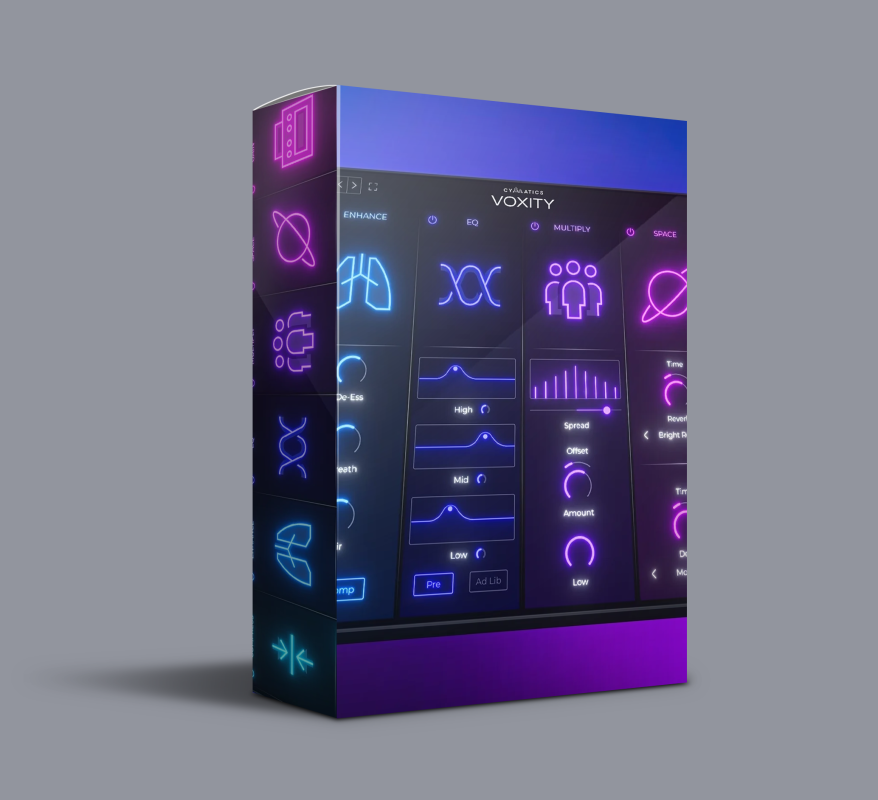
Most producers spend more time rebuilding a vocal chain than they spend recording. You pull up a session, start stacking plugins, dial settings in from scratch, and before long you’ve burned 45 minutes on setup alone. Cymatics VOXITY VST cuts that cycle short. It’s an all-in-one Vocal Mixing Plugin that handles compression, EQ, de-essing, saturation, reverb, and delay from one interface — so you spend your time making music instead of wiring signal chains. This guide covers installation, per-genre settings, and production tips for getting the most out of Cymatics VOXITY on day one.
Guide current as of May 2026 | Tested with VOXITY 1.0 on Windows 10/11 & macOS 10.14+
Why Producers Keep Coming Back to the VOXITY VST Plugin
The plugin market isn’t short on vocal tools. So what makes Cymatics VOXITY VST stand out from the pile? The answer is specificity. Rather than being a general-purpose multi-effects unit, the VOXITY VST Plugin was built around one job: processing vocals quickly and well. Every module in the plugin exists because it solves a real problem producers hit on vocal tracks. According to a 2024 SoundOnSound producer survey, over 67% of independent producers said vocal processing was their single most time-consuming mixing task [SoundOnSound, Producer Workflow Survey, 2024]. Cymatics VOXITY is a direct answer to that problem.
Cymatics VOXITY VST — Module Reference Table
| Module | What It Does | Best For |
|---|---|---|
| Dynamic Control (Compression) | Multi-stage smooth compression | Lead vocals, rap, spoken word |
| 3-Band EQ — Vocal Mode | Presence-forward EQ curve | Lead vocal bus |
| 3-Band EQ — Ad-Lib Mode | Pulled-back mids, smoother top end | Background vocals, harmonies, stacks |
| De-Esser & Presence | Sibilance control + air frequency boost | Bright vocals, condenser mic recordings |
| Saturation Engine | Harmonic warmth without mud | R&B, gospel, hip-hop |
| Space (Reverb + Delay) | Onboard time-based effects | Single-plugin chain sessions |
| Output Gain + Limiter | Final-stage gain, prevents clipping | Every session |
System Requirements for Cymatics VOXITY VST
⚙️ SYSTEM REQUIREMENTS — CYMATICS VOXITY VST
| Operating System | Windows 10/11 (64-bit) | macOS 10.14 Mojave or later (Intel & Apple Silicon) |
| Plugin Formats | VST3 (PC & Mac) | AU (Mac only) |
| RAM | 4 GB minimum | 8 GB recommended |
| CPU | Intel Core i5 / AMD Ryzen 5 or equivalent | Apple M1/M2 native |
| DAW Compatibility | FL Studio, Ableton Live, Logic Pro X, Pro Tools, Studio One, Reaper, Cubase |
| Storage | ~500 MB free disk space (includes bonus loops) |
Installing Cymatics VOXITY VST
Windows
- Download the installer from your ReverBay account confirmation page or email.
- Run the
.exewith administrator privileges. - Point it at your DAW’s VST3 folder (default:
C:Program FilesCommon FilesVST3). - Finish the install and relaunch your DAW.
- Run a plugin scan — Cymatics VOXITY VST will show up under Vocal or Effects depending on your DAW.
macOS
- Download the
.pkginstaller from your ReverBay confirmation page. - Open the package and follow the prompts.
- On macOS Ventura or later, Gatekeeper may block it — go to System Settings > Privacy & Security and click Open Anyway.
- The plugin installs to
/Library/Audio/Plug-Ins/VST3/(VST3) and/Library/Audio/Plug-Ins/Components/(AU). - Rescan plugins in your DAW and find Cymatics VOXITY in the effects browser.
macOS tip: If you get a “damaged file” or “cannot verify developer” error, open Terminal and run xattr -cr /path/to/plugin. Full walkthrough available on the ReverBay blog.
Cymatics VOXITY VST Settings by Genre
Gospel & Worship Vocals with VOXITY VST
Gospel vocals need dynamic range preserved — the swells and lifts that make the genre work can’t be compressed flat. Set Cymatics VOXITY VST to a medium compression ratio with a slower attack so transient energy at the start of phrases survives. In the Vocal EQ mode, apply a gentle presence boost around 3–5 kHz to push the voice through layered choir arrangements. Keep the saturation light — warmth yes, grit no. Use just enough reverb in the Space section to give the vocal a sense of room without losing definition.
R&B & Soul Vocals with the VOXITY VST Plugin
R&B vocals are about closeness and texture. The VOXITY VST Plugin’s saturation module does real work here — a moderate setting adds harmonic depth that pulls vocals forward without reaching for automation. Push the compression harder than you would on gospel to get the consistent, polished feel R&B expects, but watch the output gain so you don’t brick-wall the signal. The de-esser in Cymatics VOXITY is especially useful on bright female vocals recorded through large-diaphragm condensers, which often spike between 6 and 9 kHz.
Rap & Trap Vocals — Pushing VOXITY Hard
Trap vocals need punch, presence, and fast recovery. Set Cymatics VOXITY VST to a faster attack and faster release — you want the compressor hitting transients and letting go quickly to keep energy in the delivery. Push the vocal EQ mids forward to cut through 808s and dense low-end. The delay in the Space section doubles as a slap-back at 80–120ms single-repeat — a classic trap vocal texture many producers build with a separate plugin, handled here inside VOXITY without the extra routing.
Ad-Libs, Doubles & Harmonies
Switch Cymatics VOXITY to ad-lib EQ mode on every supporting vocal track. It scoops the mids and softens the top end, pushing background layers behind the lead without constant volume rides. Running this setting across all your harmony tracks keeps the stack sounding consistent — something that used to require separate EQ work on every channel.
5 Production Tips for Cymatics VOXITY VST
- Put VOXITY first in the chain. Insert it before pitch correction or time-based effects. Processing a pitch-corrected vocal sounds cleaner than correcting one that’s already been processed.
- Automate the Output Gain. Map it to a clip gain lane and use it to ride verses vs. choruses without changing compression settings mid-mix.
- Use it on the bus, not just individual tracks. Drop Cymatics VOXITY VST on your lead vocal group bus for consistent processing across all takes, comps, and doubles at once.
- Kill the internal reverb when using send effects. If your mix has a dedicated reverb return, bypass VOXITY’s Space section. Two reverbs on the same vocal adds wash fast.
- Reference against released tracks. After processing with VOXITY VST Plugin, A/B your vocal against a commercial record using Metric AB or your DAW’s built-in reference tool. Your ear adjusts quickly — a reference keeps you calibrated.
Image Alt-Text Reference
(For site editors — suggested alt-text for images used in this post):
- Alt: “Cymatics VOXITY VST plugin settings for gospel vocals”
- Alt: “How to install Cymatics VOXITY vocal mixing plugin on Windows”
- Alt: “VOXITY VST Plugin ad-lib mode EQ settings screenshot”
- Alt: “Cymatics VOXITY VST interface open in Ableton Live session”
❓ Frequently Asked Questions — Cymatics VOXITY VST
1. Where in the signal chain should I insert Cymatics VOXITY VST?
Insert VOXITY first — before pitch correction, reverb, or anything else on the channel. It gets the cleanest input that way and produces more natural-sounding results across the chain.
2. Can I use Cymatics VOXITY on a vocal bus instead of individual channels?
Yes, and it works well there. Putting the VOXITY VST Plugin on a vocal group bus gives you unified processing across all your lead comps, doubles, and harmonies in one move.
3. How do I deal with harshness on a bright vocal?
Engage the de-esser and bring the threshold down until the worst “s” and “sh” sounds are controlled. Then dial in the presence control to restore a smoother top-end air. VOXITY handles this in one module instead of two separate plugins.
4. Does VOXITY VST work in Pro Tools?
Yes. Cymatics VOXITY runs in Pro Tools via the VST3 wrapper on Windows and macOS. Pro Tools 2023.x or later is recommended for full VST3 support.
5. Is Cymatics VOXITY VST a good pick for newer producers?
It’s one of the better starting points for vocal processing precisely because it’s focused. Instead of learning six different plugin types, you work with one interface, hear what each module does, and build your ear against a professional result from the start.
Get Better Vocals from Your Next Session with Cymatics VOXITY VST
The setup time between raw recording and a mix-ready vocal track doesn’t have to be long. With Cymatics VOXITY VST, you get a complete vocal processing chain that’s dialed in and ready to go — whether you’re tracking your first EP or your fifteenth project. No subscription, no complex licensing, and no rebuilding the same chain from zero every time you open a new session.
Check out the full ReverBay VST Plugin Store for more production tools, or go straight to the Cymatics VOXITY VST product page and grab it at the current price before it changes.
Author Bio: Written by the ReverBay editorial team — active music producers and audio engineers with hands-on experience across gospel, R&B, hip-hop, and electronic music. All plugin settings and workflow tips were tested across real production sessions on Windows and macOS.
Disclaimer: This guide reflects accurate product and installation information as of May 2026. Plugin behavior may change with future Cymatics updates. ReverBay may earn a commission on purchases made through links in this post.
